Why Your AirPods Chirp and How to Silence It
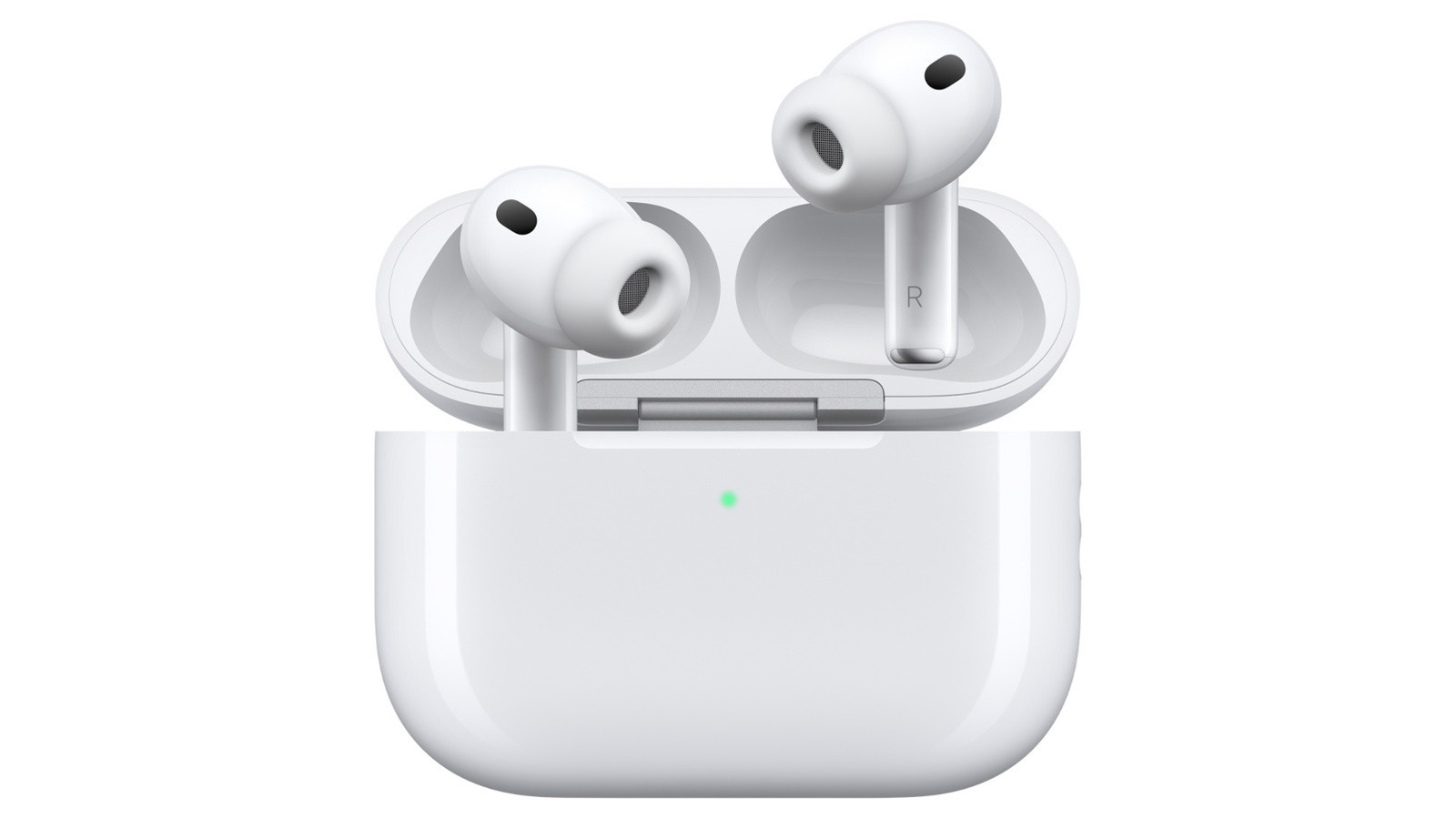
Apple’s wireless earbuds have become a staple for many commuters and gym‑goers, but the occasional high‑pitched chirp can catch users off guard. While most owners assume the sound signals a low‑battery warning, the brief beep can actually stem from a handful of different system alerts built into the AirPods and the iOS ecosystem.
Beyond the familiar low‑power notification, AirPods emit chirps when they are placed back into the charging case, when the case itself reaches a full charge, or when the earbuds detect that they have been left behind and the Find My network is attempting to locate them. The sound also serves as a cue that a firmware update is ready to install, letting users know the devices are about to restart and apply the new software.
Apple introduced many of these auditory cues to improve usability, especially for users who may not be looking at their phone screen. The Find My feature, for instance, can play a short tone from the earbuds to help locate them when they’re misplaced. Similarly, the charging‑complete beep reassures users that the case is ready for the next use without needing to check the LED indicator.
However, the chirps are not mandatory and can be muted for those who find them distracting. iOS provides a straightforward way to silence most of these alerts: open Settings, tap Bluetooth, locate the AirPods entry, tap the information icon, and turn off the “Announce Notifications” toggle, which also disables the associated sound cues. Additionally, users can lower the overall alert volume for AirPods via Settings > Accessibility > AirPods > Alert Volume, or simply reduce the iPhone’s media volume before placing the earbuds in the case.
For the Find My‑related tone, the sound can be suppressed by disabling the Find My network for the specific device. This is done by navigating to Settings > [User’s name] > Find My > My Devices, selecting the AirPods, and toggling off “Find My network.” Doing so stops the device from playing a locating chirp, though it also removes the ability to locate the earbuds through Apple’s crowd‑sourced network.
Understanding why AirPods chirp and how to control the alerts helps users tailor the listening experience to their preferences. Whether the goal is to keep the beeps as useful reminders or to enjoy uninterrupted audio, Apple’s settings give enough flexibility to manage the sounds without sacrificing the convenience that made the earbuds popular in the first place.



Comments (0)
Be the first to comment.
Join the discussion