Windows Users Can Quickly Identify Disk Space Hogs with Built‑In Tools
Microsoft has streamlined the process of locating and removing unnecessary files on Windows PCs, giving users a clear view of what is consuming storage and a set of one‑click options to reclaim space.
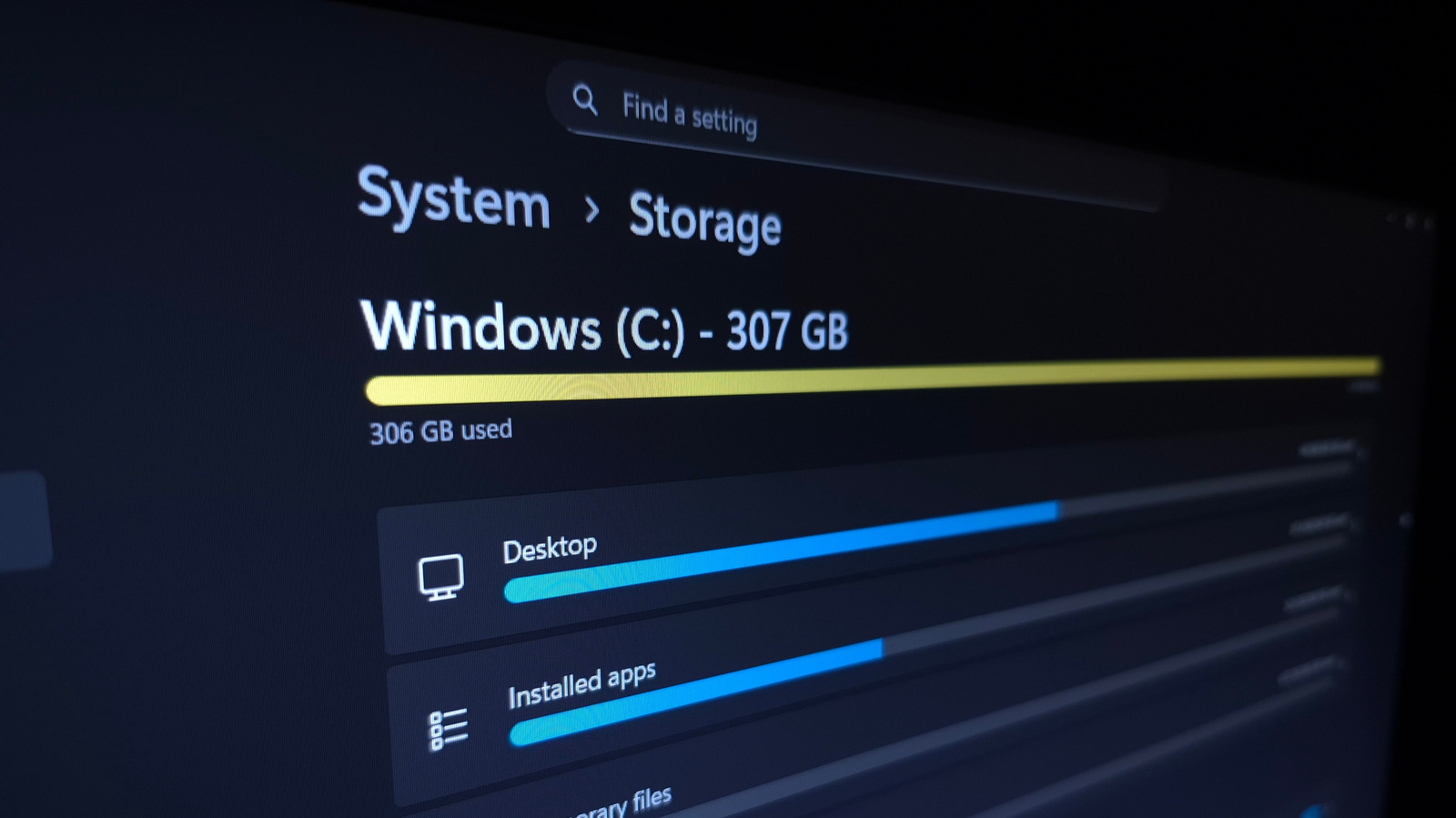
All versions of Windows 10 and Windows 11 include a "Storage" page in the Settings app that presents a visual breakdown of disk usage. By navigating to Settings → System → Storage, users see a color‑coded chart that separates files into categories such as Apps & features, Documents, Temporary files, and Other. Clicking any segment expands the view, revealing the largest contributors within that group.
The interface also offers a "Show more categories" link that surfaces less obvious consumers like "System & reserved" and "Microsoft Store" data. For each category, Windows lists the top‑ranking folders and files, allowing a user to pinpoint a 10‑GB video file or an old installer that may have been forgotten. A single click on "Temporary files" opens a checklist of items—like recycling‑bin contents, previous Windows installations, and browser cache—that can be removed safely.
Beyond manual cleanup, the operating system includes an automation feature called Storage Sense. When enabled, Storage Sense runs in the background and periodically deletes files that meet predefined criteria, such as files in the Recycle Bin older than 30 days or temporary files that have not been used for a set period. Users can customize these thresholds, ensuring that the cleanup aligns with personal preferences and storage constraints.
While the native tools cover most everyday scenarios, power users sometimes turn to third‑party utilities such as WinDirStat or TreeSize for more granular analysis. These programs generate treemap visualizations that map every folder and file to a proportional rectangle, making it easy to spot outliers. However, for the majority of consumers, the built‑in Storage view provides sufficient insight without the need to install additional software.
Keeping a Windows device lean is more than a matter of convenience. Low‑free‑space conditions can slow file‑system operations, impede Windows updates, and, on solid‑state drives, accelerate wear. Regularly reviewing storage usage helps maintain system responsiveness, ensures that critical updates install without interruption, and extends the hardware’s useful life.
Looking ahead, Microsoft has hinted at further refinements to the Storage experience in upcoming Windows releases. Expected enhancements include deeper integration with OneDrive to automatically offload rarely used files to the cloud, as well as more granular reporting on system‑reserved space. Until those updates arrive, the current Settings‑based approach offers a straightforward, no‑cost method for users to understand and manage the data that fills their hard drives.


Comments (0)
Be the first to comment.
Join the discussion