Unexpected Laptop Fan Bursts: Why Your Device Suddenly Ramps Up Cooling
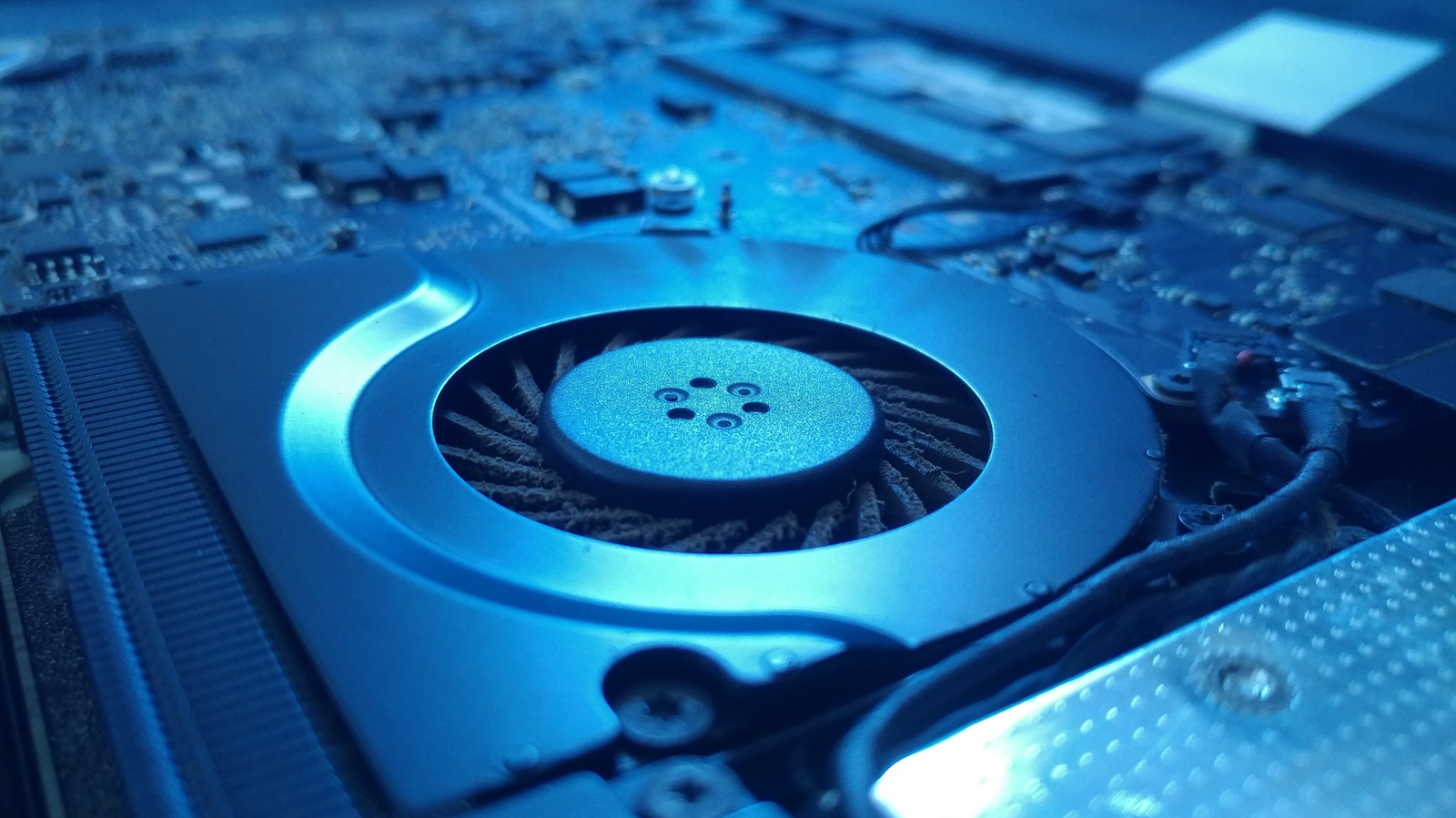
Many laptop users report that their machines seem to launch into a full‑throttle cooling mode the moment they sit down to work, producing a noticeable whirring that can feel like an aircraft preparing for takeoff. The phenomenon, which often catches users off guard, is rooted in the way modern notebooks manage heat and power.
Laptops are equipped with built-in thermal sensors that constantly monitor CPU, GPU, and chipset temperatures. When any component exceeds a preset threshold, the system automatically ramps up the fan speed to dissipate heat and protect hardware. Because these thresholds are set conservatively to avoid overheating, even modest spikes in processor activity can trigger a rapid fan response.
Software activity plays a major role in generating those temperature spikes. Background processes such as operating‑system updates, cloud‑sync services, or malware scans can briefly max out CPU usage without the user’s awareness. Likewise, drivers that manage power and graphics may request higher performance states, prompting the hardware to heat up and the fans to spin faster. In many cases, the fan activation occurs before the user notices the underlying workload.
Physical factors also contribute. Dust accumulation inside the cooling vents or on the heat‑sink fins reduces airflow, forcing the fan to work harder to achieve the same temperature drop. Over time, the thermal paste that sits between the processor and its heat sink can dry out, diminishing heat transfer efficiency. Both issues are common in older laptops and can make fan cycles more frequent and louder.
User‑controlled power settings influence fan behavior as well. Selecting a “high performance” or “gaming” power plan tells the operating system to prioritize speed over energy savings, often raising clock speeds and voltage, which in turn raises heat output. Some manufacturers expose fan‑curve controls that let users define how aggressively the fan reacts to temperature changes; default curves are typically set for safety rather than quiet operation.
The consequences go beyond annoyance. Sudden fan bursts can drain the battery faster, especially when the device is unplugged, and prolonged high‑speed operation may wear the fan bearings over time. For users working in quiet environments—libraries, cafés, or shared offices—the noise can be a genuine distraction.
Practical steps can mitigate the issue. Regularly cleaning vents with compressed air, reapplying thermal paste on older machines, and keeping the laptop on a hard, flat surface improve airflow. Updating BIOS/UEFI firmware and graphics drivers ensures that the latest fan‑control algorithms are in place. Users can also monitor real‑time CPU usage with system utilities and close unnecessary background applications, or switch to a balanced power profile to reduce heat generation.
Looking ahead, several OEMs are integrating AI‑driven thermal management that predicts workload patterns and adjusts fan speeds more subtly. Firmware updates that refine fan curves and introduce quieter idle states are becoming more common. Until such technologies become universal, understanding the interplay of software load, hardware condition, and power settings remains the best way for laptop owners to keep unexpected fan noise under control.



Comments (0)
Be the first to comment.
Join the discussion