Proper Steps to Clean Your Laptop Fan and Keep It Running Cool
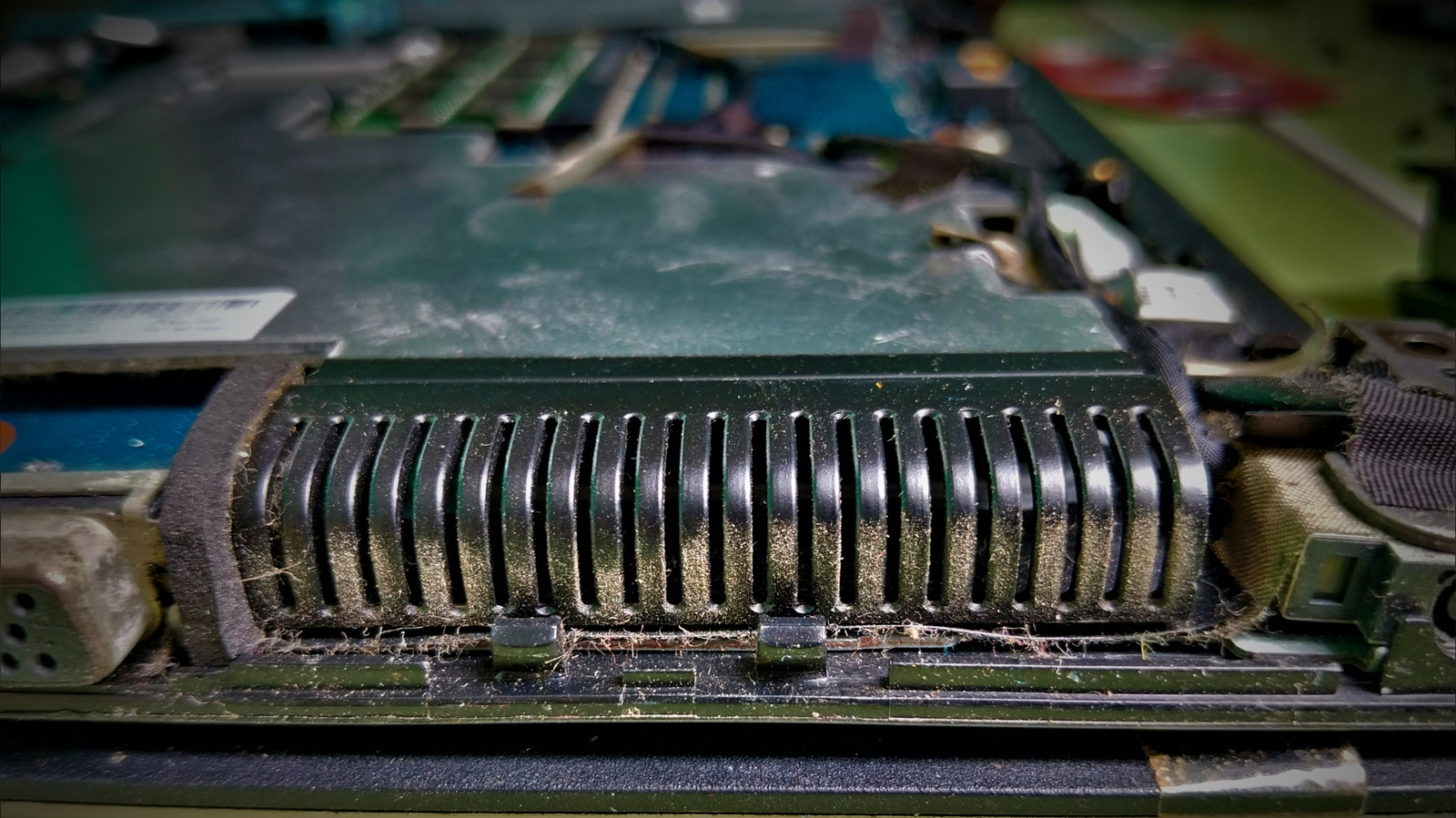
Keeping a laptop from overheating often starts with a simple, often overlooked task: cleaning the cooling system. Dust and debris can clog the intake vents and coat the fan blades, reducing airflow and forcing the processor to work harder, which can shorten the device's lifespan.
The first move is to address the external vents before opening the machine. With the laptop powered down and unplugged, a short burst of compressed air can be directed into each vent, dislodging loose particles. This step is safe for most models and can remove a significant portion of the buildup without the need for tools.
If airflow remains restricted after the initial blow‑out, the next phase involves opening the chassis. Using a compatible screwdriver, the bottom panel is removed to expose the fan assembly. At this point, a more thorough cleaning can be performed: a second pass of compressed air clears deeper dust, and a soft brush can gently sweep the fan blades and surrounding heat sink.
Throughout the process, it is important to handle components with care. Avoid touching the fan motor or any circuitry with bare hands, as static discharge can damage sensitive parts. Many technicians recommend grounding oneself or using an antistatic wrist strap, especially when working on laptops with high‑performance components.
Once the fan and heat sink are clean, reassemble the laptop in reverse order, ensuring all screws are tightened to the manufacturer's specifications. Power the device back on and monitor the temperature using built‑in diagnostics or third‑party software to confirm that cooling performance has improved.
Regular maintenance—ideally every six to twelve months depending on the environment—helps prevent heat‑related throttling and can extend the useful life of a laptop. By starting with the vents and only moving to internal cleaning when necessary, users can safely keep their machines running efficiently without unnecessary risk or expense.


Comments (0)
Be the first to comment.
Join the discussion