iPhone Always‑On Display May Turn Off Unexpectedly—Here’s How to Keep It Running
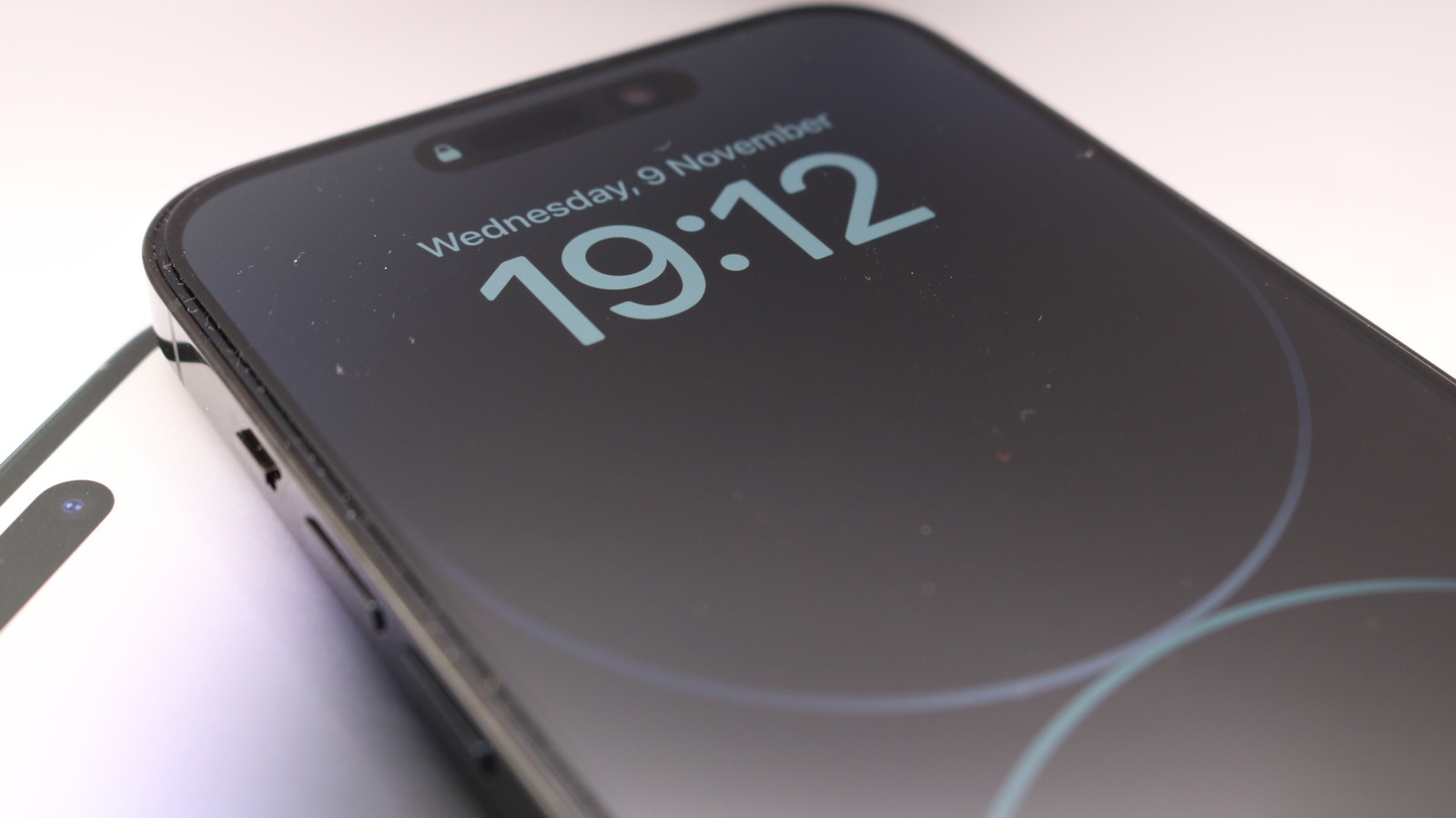
iPhone owners who rely on the Always‑On Display (AOD) feature have reported that the screen sometimes blanks out without warning, prompting confusion about why a function that is meant to be always active appears to disappear. Apple’s own settings allow users to manage several of the conditions that can cause the display to shut off, offering a straightforward way to restore the feature’s reliability.
The AOD capability debuted with the iPhone 14 Pro series, letting users glance at the time, widgets, and notifications even when the phone is locked. By keeping a low‑power version of the lock screen illuminated, the feature aims to reduce the need to wake the device for basic information, mirroring similar functions on competing smartphones.
However, the display is not truly “always” on; it is designed to deactivate under specific circumstances to preserve battery life and protect privacy. The most common triggers include activation of Low Power Mode, which disables AOD to conserve energy, and the detection that the device has been uncovered after Face ID authentication. The system also suspends the feature when ambient light exceeds a certain threshold, when the battery drops below a predefined percentage, or when a magnetic accessory such as a case or wallet covers the screen. Certain high‑intensity apps and background tasks can similarly suppress the always‑on view.
Users can adjust how and when the AOD operates through the Settings app. Navigating to Settings → Display & Brightness → Always‑On Display reveals a toggle that enables or disables the feature entirely. Below the switch, options let users set a schedule for when the display should be active, choose whether it remains on while the phone is locked, and decide if it should stay lit when Low Power Mode is turned on. Turning off the “Cover detection” option prevents the screen from turning off when a magnetic case is attached, while raising the battery‑percentage threshold can keep AOD alive longer during a charge.
Practical steps to maintain a functioning Always‑On Display include ensuring Low Power Mode remains off unless needed, keeping the battery above the 20‑percent mark, and selecting a wallpaper that offers sufficient contrast for the dimmed screen. Users who frequently use magnetic accessories may wish to disable the cover‑sensor setting, and those who operate the phone in bright environments can lower the maximum brightness to avoid the automatic shutdown triggered by excessive ambient light.
Understanding the built‑in safeguards that govern the Always‑On Display helps iPhone users avoid unexpected black screens and make the most of the feature’s convenience. As Apple continues to refine iOS, future updates may introduce more granular controls or smarter algorithms that balance visibility with power efficiency, further reducing the need for manual adjustments.



Comments (0)
Be the first to comment.
Join the discussion