Windows 11 Users Can Streamline GPU Driver Updates Ahead of New Game Launches
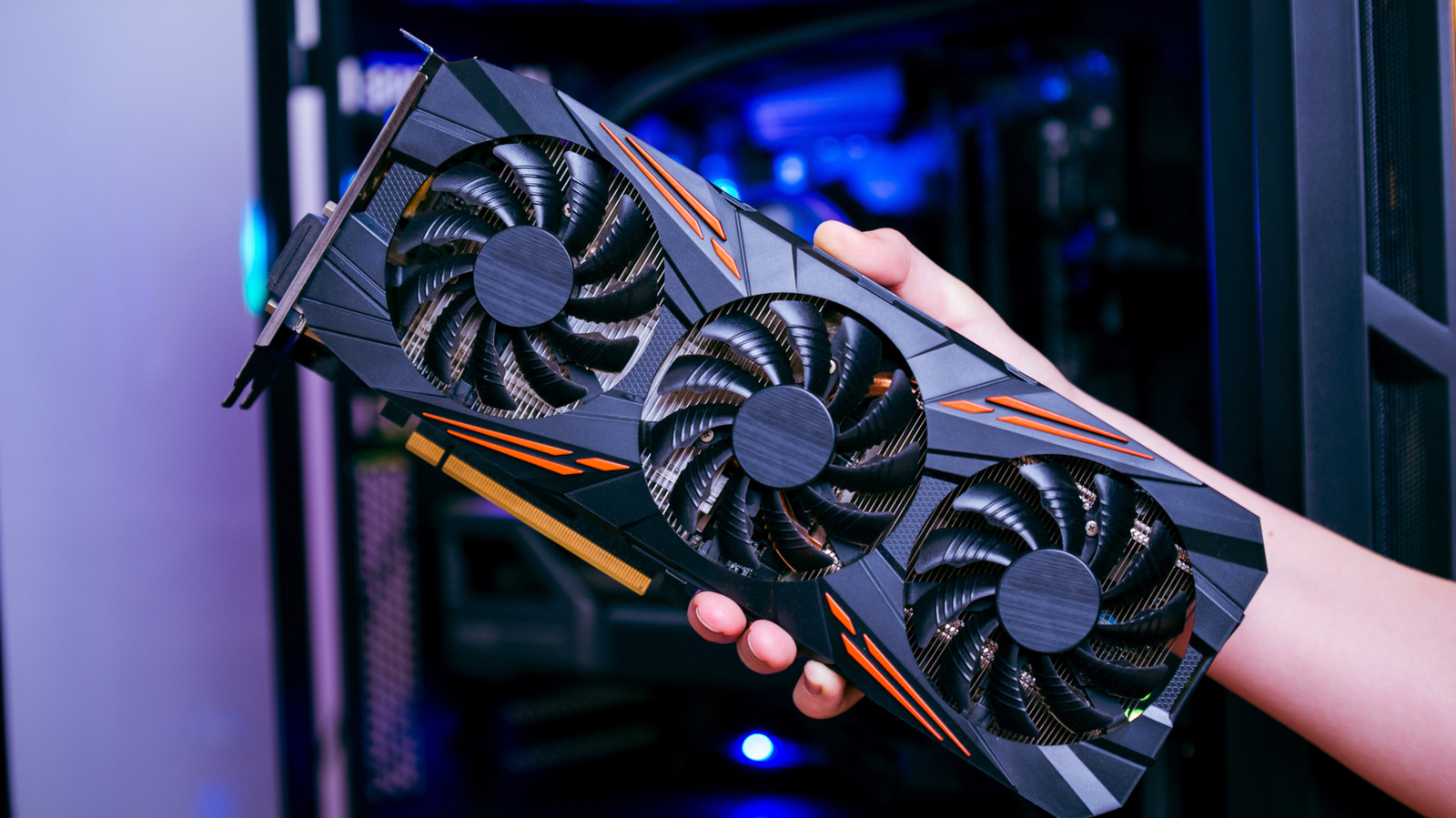
As fresh titles arrive on the market, many Windows 11 gamers discover that the latest graphics drivers are essential for unlocking optimal frame rates and visual fidelity. Updating the GPU driver is a routine maintenance step that can make the difference between a smooth experience and stuttering performance, yet the process is not always intuitive for users who are unfamiliar with the various pathways available.
Microsoft bundles driver updates into the regular Windows Update service, and Windows 11 expands that integration through an "Optional updates" section where graphics drivers appear alongside other hardware updates. To access it, users open Settings, navigate to Windows Update, and select "View optional updates"; any compatible GPU driver will be listed for download and installation. This method ensures that the driver version has been vetted by Microsoft, reducing the risk of incompatibility.
For those who prefer the most recent releases directly from the hardware vendor, the Device Manager offers a manual route. By expanding the "Display adapters" node, right‑clicking the GPU entry, and choosing "Update driver" > "Search automatically for drivers," Windows will query the manufacturer’s database. Alternatively, users can visit the support pages of NVIDIA, AMD, or Intel, download the latest package, and run the installer. These vendor‑provided drivers often include game‑specific optimizations and features that may lag behind in the Windows Update catalog.
Beyond the technical steps, the timing of driver updates matters. Game developers frequently release patches that rely on newer driver APIs, such as DirectX 12 Ultimate enhancements or ray‑tracing improvements. Installing the most current driver shortly after a game’s launch can prevent crashes, resolve texture glitches, and improve overall stability. Conversely, reverting to an older driver may be advisable if a new release introduces regressions, a scenario that can be managed through Windows' "Roll back driver" option.
Security considerations also play a role. GPU drivers can contain vulnerabilities that attackers might exploit, especially in systems that run graphics‑intensive applications over the internet. Regularly applying updates—whether through Windows Update or the vendor’s installer—helps close those gaps and keeps the system hardened against emerging threats.
Looking ahead, Microsoft is refining how driver updates are delivered, with plans to integrate more granular, AI‑driven recommendations that match a user’s hardware profile and installed software. For now, Windows 11 users can stay ahead of new game releases by checking Windows Update’s optional section weekly, confirming the driver version in Device Manager, and, when necessary, downloading the latest package from the GPU maker’s website. By keeping the graphics stack current, gamers ensure they extract the full potential of both their hardware and the games they love.

Comments (0)
Be the first to comment.
Join the discussion