How to Restore iPhone Camera Defaults for Better Shots
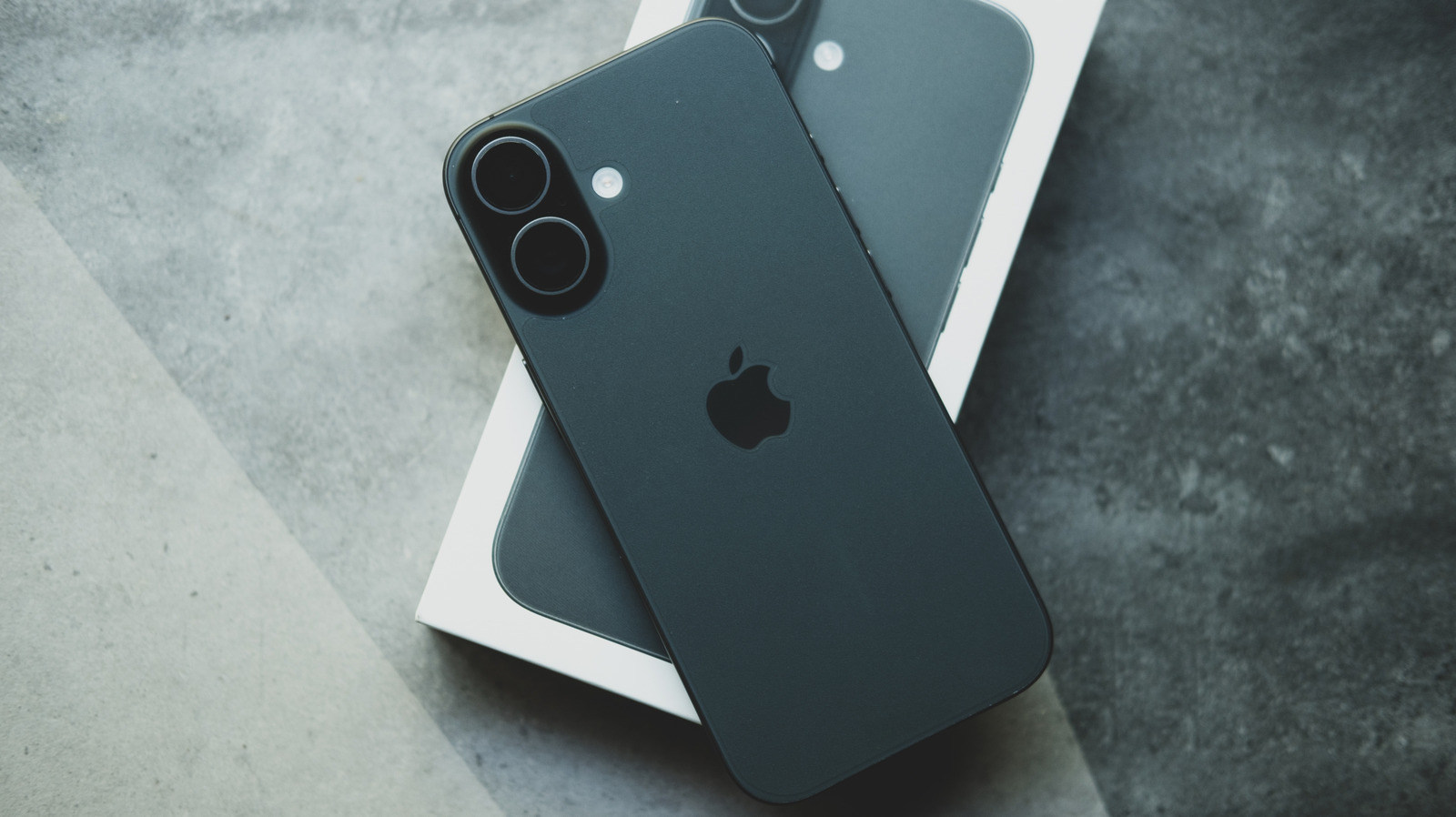
Apple iPhone owners who rely on the built‑in Camera app for everyday photography now have a straightforward way to wipe away any custom tweaks and return the software to its original factory settings, a move that can help recapture the device's out‑of‑the‑box image quality.
Over time, users often experiment with options such as HDR, grid overlays, lens correction, or third‑party lens attachments, and these adjustments can accumulate, leading to unexpected exposure or focus behavior. When a photo looks off and the cause isn’t obvious, resetting the camera settings offers a quick diagnostic step without the need for a full device restore.
To perform the reset, iPhone users should open the Settings app, scroll down to the Camera section, and tap the “Preserve Settings” toggle to turn it off if it is enabled. After that, they can select “Reset Settings” within the same menu, confirming the action when prompted. The process clears all preferences—including framing guides, video stabilization choices, and custom filters—while leaving the operating system and personal data untouched.
Restoring defaults can be especially useful after installing new iOS updates, which sometimes change how the Camera app interprets existing configurations. By starting from a clean slate, photographers can reassess lighting, composition, and focus without hidden variables interfering, making it easier to determine whether a problem stems from software or external factors such as lighting conditions or accessories.
Importantly, the reset does not delete any photos already saved in the Photos library, so users can experiment freely without risking their existing collection. After the reset, they can re‑enable preferred settings one by one, allowing a methodical approach to customizing the app again. The ability to revert to default camera parameters ensures that iPhone users can maintain consistent image quality even as they explore the device’s extensive photographic capabilities.


Comments (0)
Be the first to comment.
Join the discussion