How to Recover Missing Apps and Conceal Unwanted Ones on Android Auto
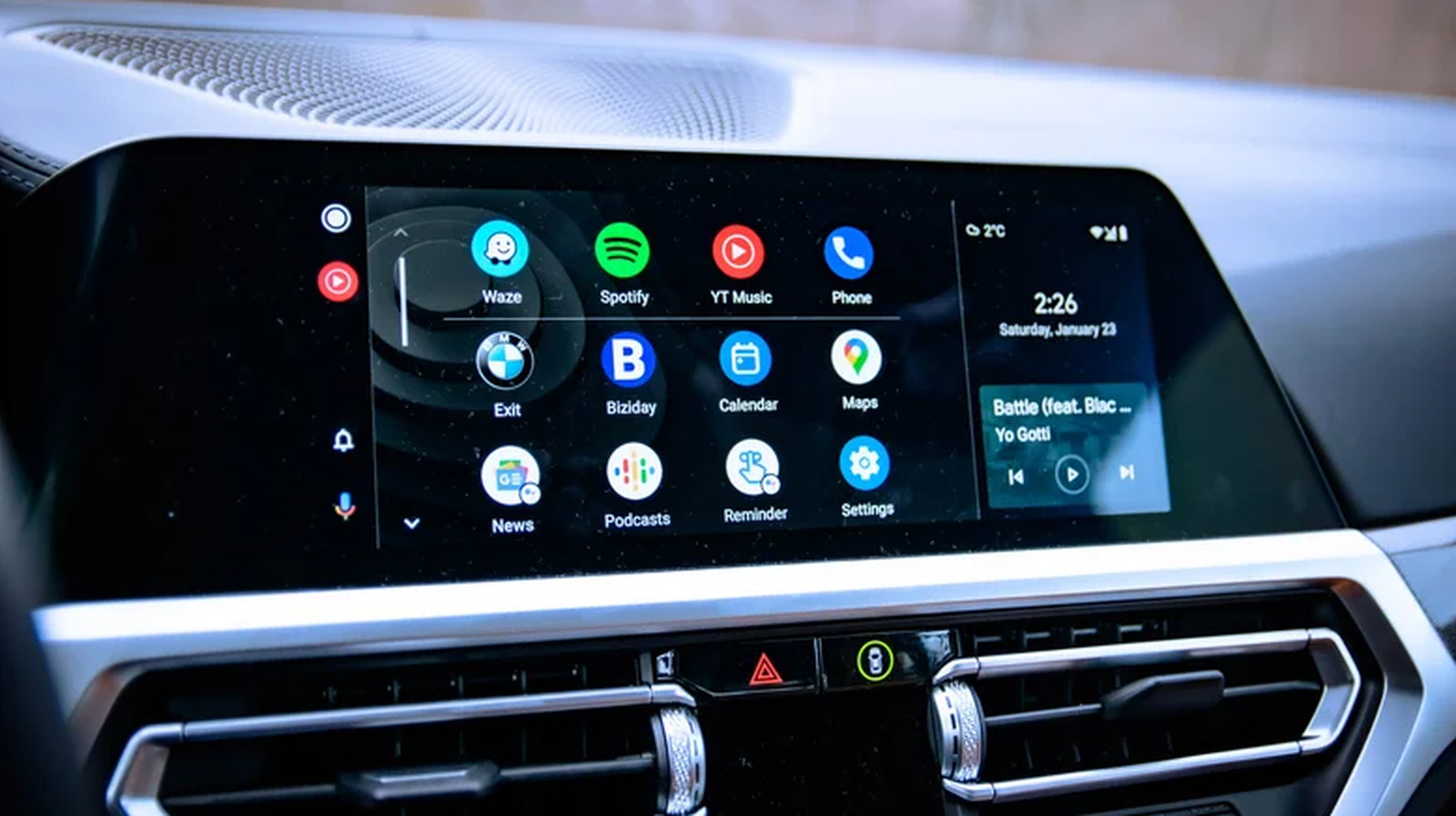
Android Auto has become a staple for drivers who want hands‑free navigation, music streaming, and messaging, but a growing number of users report that apps sometimes disappear from the interface without any clear trigger. This abrupt vanishing can disrupt trips and leave drivers searching for essential functions while on the road.
The issue stems from the way Android Auto manages app visibility based on compatibility and user preferences. When an app is updated, removed from the Play Store, or flagged as incompatible with the car’s head unit, the system may automatically hide it from the main screen. Because the platform does not provide a prominent warning, many drivers only notice the loss after they need the app.
Fortunately, Android Auto includes a hidden settings menu that lets users locate and restore those missing applications. To begin, launch the Android Auto app on a smartphone, tap the three‑line menu icon, and select “Settings.” From there, choose “Connected apps” or “App visibility,” where a list of installed apps appears with toggle switches indicating whether each app is shown on the car display. Any app that is turned off can be re‑enabled with a single tap, causing it to reappear the next time the vehicle connects.
Conversely, the same menu allows drivers to deliberately hide apps they rarely use, reducing clutter and simplifying the on‑screen layout. By switching an app off, it remains installed on the phone but no longer occupies space on the car’s dashboard, helping to keep the interface focused on navigation, music, and communication tools. This feature is especially useful for users who have multiple streaming or utility apps but prefer a streamlined experience while driving.
Understanding how to manage app visibility is important as Android Auto continues to evolve and integrate new services. While Google has not announced a dedicated “app manager” within the car’s UI, the smartphone‑side settings remain the primary method for controlling what appears on the screen. Users are encouraged to check these settings regularly, particularly after updating apps or the Android Auto system, to ensure their preferred tools remain accessible and to prevent unexpected disappearances during future trips.

Comments (0)
Be the first to comment.
Join the discussion