Hidden iPhone Files That May Be Eating Up Your Storage
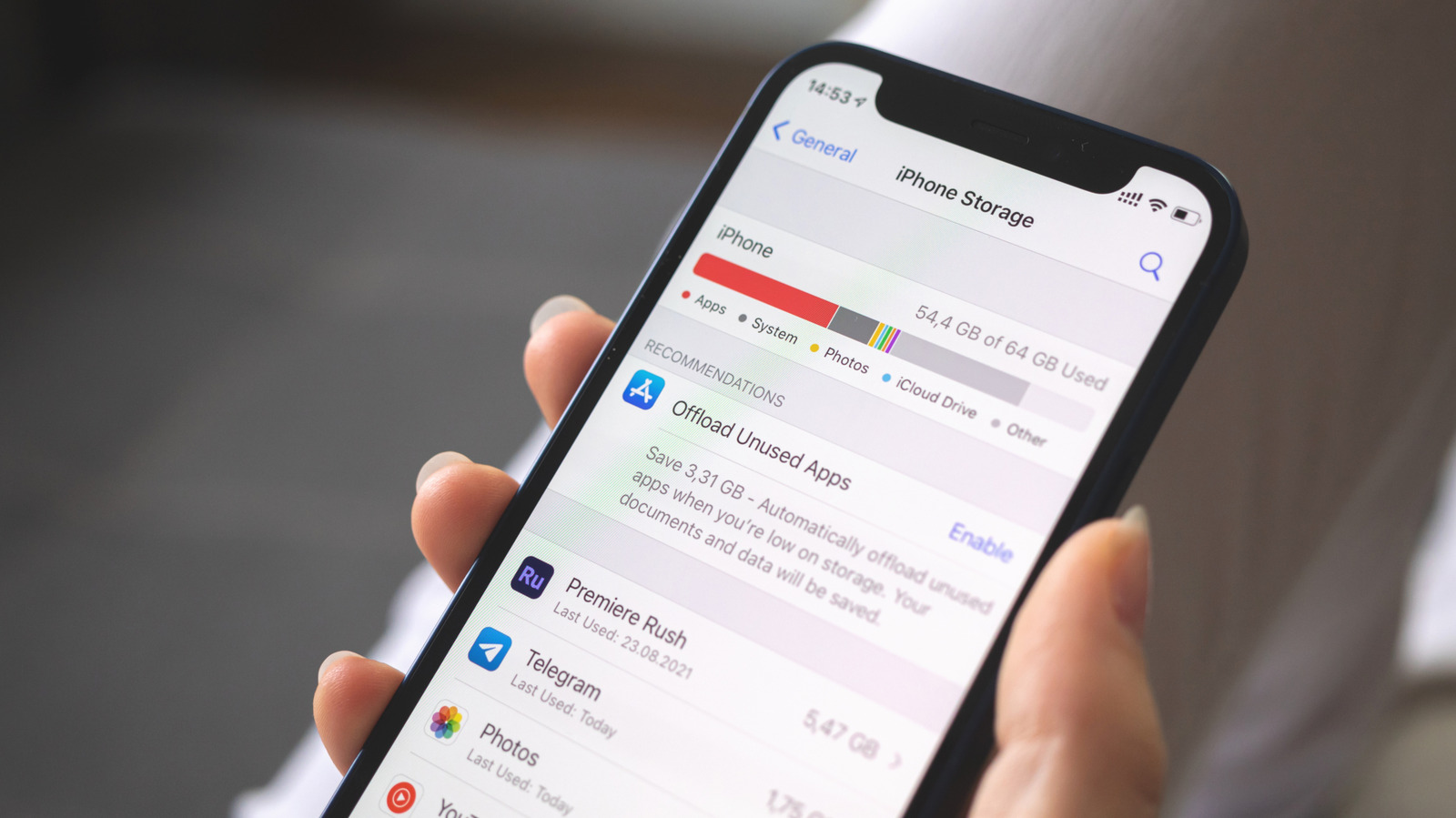
Many iPhone owners find themselves staring at the dreaded "Only X GB left" warning, yet a quick glance at Settings often shows only a fraction of that space accounted for. The reality is that iOS can stash data in several locations most users never think to check, from lingering message attachments to background caches of everyday apps.
Apple’s built‑in storage breakdown, found under Settings > General > iPhone Storage, lists categories like Apps, Photos, and System, but it also offers a “Review Large Attachments” button that surfaces gigabytes of old photos, videos, and PDFs sitting inside Messages. Adjusting the Messages setting to automatically delete items older than 30 days or 1 year can instantly reclaim space without losing recent conversations.
Beyond messages, the Mail app often retains full‑size attachments even after emails are deleted, and voicemail recordings can pile up unnoticed in the Phone app. Users can purge these by going into Settings > Mail > Accounts > [account] > Advanced and toggling “Remove Attachments” or by manually deleting old voicemails from the recent calls list.
Web browsing and streaming services also contribute hidden bloat. Safari stores a cache of visited pages, images, and offline reading lists that can grow over months; clearing this cache via Settings > Safari > Clear History and Website Data frees up several hundred megabytes. Podcasts, music, and offline maps downloaded for travel stay on the device until explicitly removed, and many third‑party apps (social media, gaming, photo editing) keep temporary files that only disappear after a reinstall. Checking each app’s storage usage and offloading or deleting rarely used ones can make a noticeable dent.
For users who regularly hit the storage ceiling, the next step is to leverage iCloud or other cloud services. Enabling “Optimize iPhone Storage” for Photos stores full‑resolution images in the cloud while keeping device‑size thumbnails locally. Moving documents to iCloud Drive, Dropbox, or Google Drive, and using streaming instead of downloading media, reduces the need for large local libraries. As iOS continues to evolve, Apple may introduce more granular controls for background caches, but for now a systematic review of the hidden data pockets outlined above remains the most effective way to free up valuable space.



Comments (0)
Be the first to comment.
Join the discussion